
How to download a Facebook Reel
- Click Add to Chrome and confirm in the Chrome Web Store.
- Open the Reel on facebook.com in Chrome. The round VideoToMP4 button sits in the column beside the Reel, right after Share.
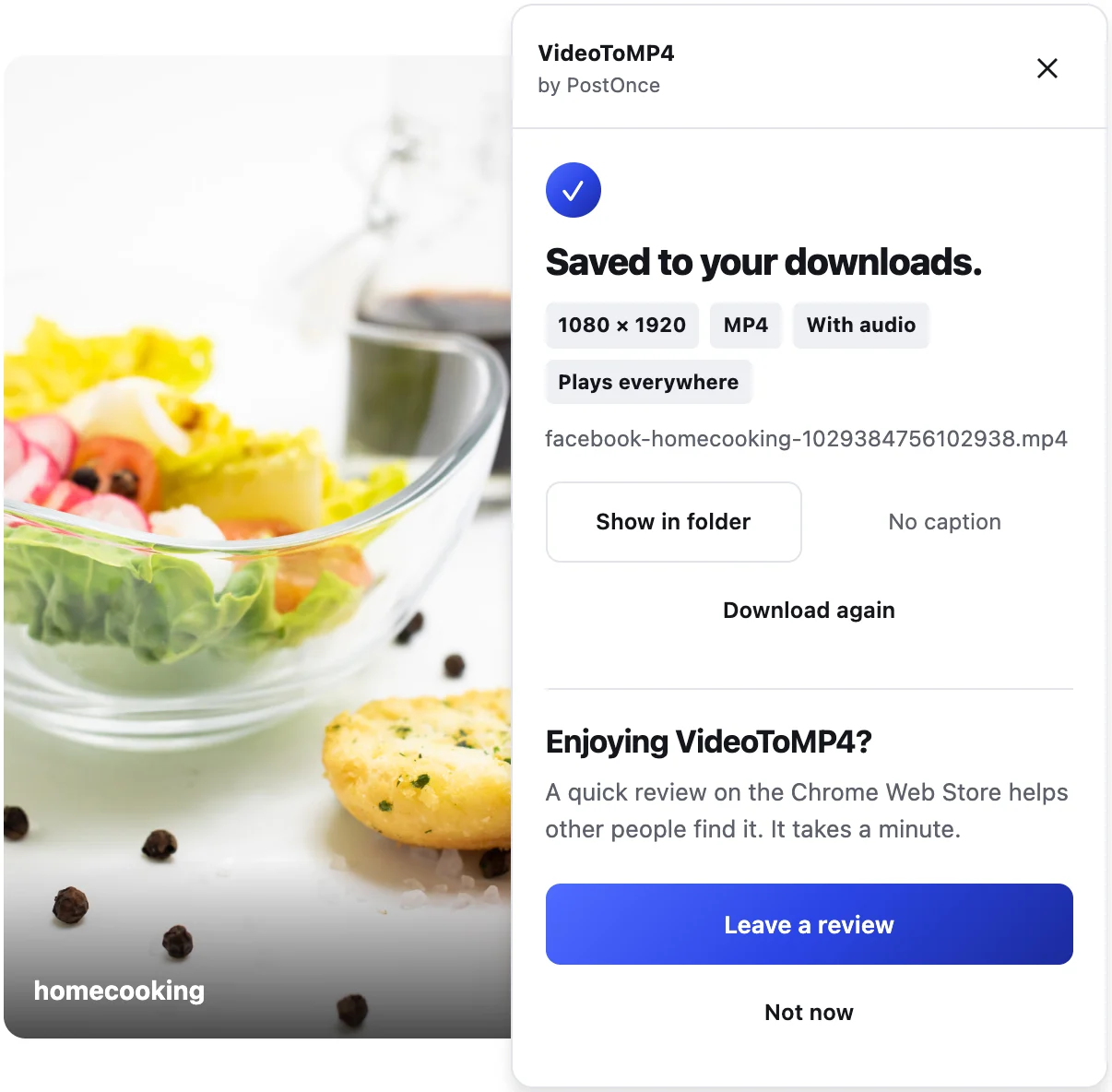
- Click it. The panel shows progress, then "Saved to your downloads." with the resolution, "With audio" and "Plays everywhere".
What makes Reels tricky, and what VideoToMP4 does about it
The format
Facebook usually sends Reels as VP9, which iPhone, QuickTime and many editors can't open. VideoToMP4 converts the Reel to H.264 in your browser, with the original sound, so you can open it anywhere or post it elsewhere.
The sound
Reels arrive as a silent picture plus a separate sound track. VideoToMP4 combines them and shows "With audio" when the file is saved.
The right Reel
Reels change as you swipe. Before saving, VideoToMP4 checks that the Reel's length matches the one in the player. If it can't be sure, it saves nothing and asks you to open the Reel first.
The button
It sits in the Reel's own column with Like, Comment and Share. It doesn't cover the Reel or its sound button.
Quality
VideoToMP4 saves the best version Facebook offers, up to 1080p. Many Reels are only offered at lower sizes such as 576 × 1024; you get the best available, and the panel shows the real size.
Honest limits
- Stories, comment videos and shared-post videos aren't supported yet.
- One Reel per click; no bulk downloads.
- Desktop Chrome only.
More
VideoToMP4 also saves Facebook Watch, Page, group and feed videos, plus Instagram, TikTok and Pinterest videos. See the Facebook video downloader and Facebook to MP4 pages.
Please only download Reels you own or have permission to reuse.